Friday, 10 April 2026

Born to run

 Just recently we've had some problems notified to us where Windows will not allow Wessex Pricing Program to run. Just when you thought you'd got the download (see Picture Frame Pricing Programs: Download woes) and installed it, Microsoft puts another obstacle in your path!

Doing a bit of detective work it seems that the problem occurs in new devices. Security that was Off by default is now turned to On.

The root cause is that Windows recognizes "safe" program by a security certificate. So why doesn't WPP4 have one? Simply because they cost upwards of £200 annually and we just don't sell enough to justify that.

So, what to do?  As with most computer related things it's easy once you know.

In Windows go to "Settings" and choose "Apps". Then "Advanced app settings" (the second one down). Now you will see at the top "Choose where to get apps". Make sure this is set to "Anywhere"


Everything should now work properly.

It doesn't? Here are a couple of other things to try.
Go back to "Settings" and this time choose "Privacy and Security", then "App and browser control". Now select "Smart App control settings". Make sure this is set to "Off".

There is one more thing we can do. 
Go back to "App and browser control" and this time choose "Reputation-based protection settings". Make sure "Potentially unwanted app blocking" is set to Off.

No excuses now, Microsoft will now treat us as an adult and everything should work!


Wednesday, 1 April 2026

I did it my way .... (adding, & deleting Mount, Glass & Sundries items).

 I was looking through some of the Blog posts and realised that I haven't really covered customising the drop-down Mount, Glass and Sundries lists. This is one of the key advantages of using the Wessex Pricing Program (WPP4) - the ability to make the program reflect the work you do and not have to accept the things that someone else thinks you should be doing. 

When you first run the program it suggests that you load some sample lists and values. This is great to practice with, but does it really reflect the framing you offer? For instance you might not offer Plain Mirror but you do offer 3mm glass.

So, down to the nitty gritty how do you go about configuring these drop-down lists?

The first thing to remember is that adding a label to the list and assigning a value to it are two separate actions.

To add the label click "Setup" > "Customise Labels ..." and you will see a form with tabs.


The first tab "Address" is where you enter the contact details that are printed on the invoice and workticket.

The other tabs are essentially the same. If you want to delete an item then, in the lower box the downward pointing arrow will display the list, select the one you want to delete and click "Remove".

To add an item, in the upper box type in the new label (upto 15 characters/spaces). Click "Add" and you're done, simples?!

You can check that the item(s) has actually been added to the list by going back to the main program screen. If it doesn't appear, choose the "Jobs" tab, and click "Reset". This causes the program to reread the file that contains the lists.

The new item is now in the list but it's value is zero, so we now need to assign a cost to that item. 

 Click "Setup" > "Values" and this screen appears - 


Select the new item and enter the values you want associated with it. Then click "Save". The Mount and Glass tabs are similar (the price is based on area), whereas in the Sundries tab you will need to select whether the item is to be a single value (eg. a strut back), priced by the perimeter (eg. Liming), or by the area (eg. Needlework) . 


The drop-down lists are displayed either in the order the items were entered (fine for a short list) or alphabetically (you can select that option on the "Customise Lists" form). 
Now you're good to go. 
It's always good practice to take a copy of the Lists and Values file, (click "Export"), just in case.


Friday, 14 November 2025

Changes in ver. 4.4.17

It always seems to be around this time of year that I release a new version of the Wessex Pricing Program. This year is no different - so here's version 4.4.17.


Lets see what's new.

  1. When you look at the worktickets list - at the top of the form is a figure which is all the jobs on that list added up. The idea being that you could look at that figure and see how much money would be owed to you once all those jobs were completed. However, most framers take deposits, so that grand total figure does not really represent what we want to see. Now the figure displayed is the amount owed to you after the deposits. Much more useful.                                                       
                                         

    2. There are always little tweaks and bugs to sort out, and this year was no exception. They are the "if I press this and click that, and then try to go back - this happens" variety. They were mainly in the "WorkTickets > Views > List by Item" area. So you should now find things a bit less frustrating if you use those tools.                                                                                                                                                                                     
 
3. The last update probably doesn't affect most users. It's to do with where some of the data files are stored. By default the XML data files are stored in "C/ProgramData/WessexPictures/wpp4". This suits most framers, the program takes care of things like importing and exporting those files. But, if  you are operating on a larger computer network it's better if these files are stored in your personal space. 


      So, introducing "yourname/AppData/Roaming".


To use this go to "Setup >  Options" and choose the Netwk/BkUp tab. At the bottom you can select the location for those XML files. 
Though I'd suggest to leave things in their default location unless you have a reason to change.

You can download the new version by going to Free Trial Form on the Wessex website (remember to sign in). Don't worry that it says "Free 30 day trial" the program knows you have paid for it!

If you have problems with the download have a look at Picture Frame Pricing Programs: Download woes 

Enjoy!


Sunday, 6 July 2025

Life after Windows 10

 Later this year (2025) Microsoft will stop supporting Windows 10. So this leaves us users with a dilemma  - upgrade (though many older computers will not run Windows 11), buy a new computer(s) with Windows 11 on it, move over to Linux, or soldier on with our fingers crossed?

Buying a new computer will be around £500 +, not a trivial sum. Using the Linux operating system is free, but involves dealing with a completely new system. Also, some specialized programs are only available for Windows (and funnily enough that includes Wessex Professional). Soldiering on means that you will quickly come to grief, but ONLY if you are connected to the internet. If you aren't connected to the internet at all then the baddies out there have no way of getting to you. 

It is obviously impractical for your main computer not to be connected, but if you end up with an old Windows computer it could be used in the shop as your pricing computer. Wessex Professional doesn't need to be connected to the internet in order to give prices, view job tickets and invoices etc. So that computer you were going to junk (recycle) could find a new lease of life.

But, if we're not connected to the internet how do we keep upto date with moulding prices and program updates? The answer is "Simples", by downloading the appropriate file(s) from a connected computer, and copying it\them onto a USB stick which is then inserted into the old computer that still has the pricing program on it. Thus, if we wanted to update Wessex Mouldings, on the connected computer we'd download the update file (by going to www.wessexpictures.com/Wessex-Pricing). Then copy the file to a USB stick, transfer the file to the old computer and from within the program go to "File" > "Update Mouldings" and when prompted tell the program that the file it needs is on the USB stick.

So, Microsoft switching off support for Windows 10 could be a positive after all!


Thursday, 22 August 2024

The best just got better!

 It's now become a bit of an annual ritual - a new version of Wessex Professional. This time it is version 4.4.16 (You can check your version by going to "Help" > "About", and view which version you have).

If you are new to Wessex Professional - welcome!

If you already use the program I would really encourage you to take the trouble to upgrade as this will give you a more reliable, user friendly experience. Also, it's free to upgrade! 

Go to the Wessex Pictures website and navigate to the Pricing Programs section . Select the Free 30 Day Trial and download. Your web browser will probably come up with various warnings, but have a look at this post to complete the download.

Before you start the new installation it's sensible to take a copy of your database file (V3.mdb) and the Labels & Values file (user.xml). These two file contain all your data, so treat them well!

Double click on the downloaded file (SetupWPP4_4_16.msi) and install. Run the program and check that all is well - and you're done!

Below is a screenshot of the changes -


When you have got Wessex Professional up and running, if you haven't done it already, set up a automatic backup - it could save a lot of frustration. Have a look at this post for more information.


Monday, 2 October 2023

New for 2023

 It's been nearly a year since the last update to the Wessex Pricing Program, there haven't been any embarrassing glitches revealed (phew!) so this new update sorts out some features that were fine originally but now feel rather "clunky". 

The new update is version 4.4.15 (you can check your version by going to "Help" > "About" on the main program screen).

The first change is - instead of the measurement system (Mm. Cm. or Inches) being shown as three separate selections below the dimension boxes, it is now in one box next to them. Simply click the box to change.


The next change is  to the collection dates. The collection date is derived from the turnaround time (in days) set in "Setup" > "Options"  and selecting the "Turnaround" tab. 
Previously if the collection date worked out to be a Sunday then that date would be moved on to a Monday. Now you can set the days of the week that you are closed and any collections for those days are moved on.


The messages printed at the bottom of the invoice have been made easier to change. Go to "Setup" > "Options" and select the "Print" tab.
You can choose to hide the collection date, just show the date, or show the date and a short message. 
In addition you can set a footer message of up to 115 characters. 


The final new feature is when you view an individual work ticket, by holding the mouse over the moulding Id you can see some information about that moulding, this now includes the current amount in stock. (This assumes you keep your moulding stock up to date.) Also this stock amount is printed on the work ticket.
Hope you find the updates useful. 😊


Wednesday, 2 November 2022

Version 4.4.14 - a bit of housekeeping

 You've probably seen that a new version of the Wessex Pricing Program is now released (ver. 4.4.14). 

So, what's new?

Really, it's a bit of tidying up, sorting out some things I've been meaning to get around to.

  • Making sure that apostrophes are now displayed and printed correctly. Previously they were shown as double apostrophes (ie. O'Brian was O''Brian).
  • Correcting as error in Extra Cost where multiple Extra Costs, some including VAT and some not, were incorrectly totalled. 
  • The "Moulding Needed" function now takes account of inner mouldings. It also gives better user-feedback while the records are being processed.
  • When a supplier's mouldings are being updated the program now checks to see if the supplier's update file is already open and prompts to close it. (Previously an unhandled error.)
  • If there is an error on opening the supplier's update .xls file - program suggests checking that the worksheet is correctly titled "gen".
  • The Mouldings Needed list and the Jobs list now prints item line in colour (as the list on the screen) not all black text as previously.
Didn't know you could have multiple Extra Costs? Yes, you can, just be sure to rename the Extra Costs to something else (ie. "3 apertures" or "Special Mount") and don't repeat that name. When you select "Extra Cost" the program looks to see if the same name has already been entered in the Sundries list. You are not allowed to select the same item twice, as this would be a definite cause for confusion.

If you haven't already done it - head over to Pricing Program | Wessex Pictures | Picture Framing Wholesaler and download the "Free 30 day Trial" and (having backed up your database and labels/values files) and install this latest version (don't worry, the program will know that you are an existing user).
Enjoy.

Saturday, 17 September 2022

What's in a name?

 Managed to get another Shakespeare quote in the blog title! 

Wessex Professional has a very useful facility to rename a moulding supplier. Why might you need to do this?

  1. If the supplier has changed their trading name - Arqadia to Larson Juhl for instance.
  2. If one supplier has taken over another's mouldings - Wessex now sell what were Frinton mouldings.
  3. You have called the same supplier different names - The records for Rose & Hollis could also be listed under R&H for example.
If you leave things alone the program will still issue prices quite happily, the problem comes when you try to update that supplier's mouldings from a (.xls) file. 

Using the "Wessex /Frinton scenario, what will happen is that all the mouldings in the program listed under Wessex will be updated, but when it comes to those records that were Frinton's, they will not be added in with Wessex because their reference number is still listed under Frinton and the database won't allow duplicate reference numbers. So, the final report will say that xxx number of mouldings have failed to be added.

This is where the ability to easily change the supplier's name comes in. While it would be possible to do it the hard way and manually edit each moulding record the change the supplier's name, much better to let the program do the hard work, so -

  • Click "Setup", then "Options"
  • Select the "Database" tab.
  • Top left is "Database Utilities". Click "OK".
  • You'll be urged to make a copy of your database just-in-case.
  • On the 3rd panel down select "Change Supplier name" and click "Go".
  • Select the supplier you want to change from the drop-down menu. Click "OK"
  • Enter the new name for that supplier. Click "OK".
  • Done!

Saturday, 19 February 2022

Pricing App - Importing a moulding file

 Just recently I've had to update the Pricing App to take account of the new Android versions - the old code for importing a mouldings file no longer worked on the newer versions (11 and beyond). So, you will notice that the import mouldings screen looks a bit different (App version 2.2.5 and beyond).

A bit of background to start with. The App can price frames using two different ways of getting the data it needs for the moulding part of the cost. 

The simplest is a price code - this begins with "#" and contains numbers and a letter, eg. #56G (the cost per metre/foot, and the width) This is fine for working out the cost, but it doesn't identify the individual moulding (mouldings with the same width and cost have the same code).

The second method is to use a csv file to list individual mouldings and their data. "csv" stands for comma separated values. It is a very simple file which you could open with Excel (or other spreadsheet program) and edit yourself. The file can list a particular supplier's mouldings or (if you use the Wessex Pricing Program for pc all the mouldings in your database). The good thing about this way of pricing is that it identifies an individual moulding and use a code that you will be familiar with.

But either of these methods needs to be kept upto date. With the csv file it means importing a new file periodically. First of all you need the download the file onto your device, either go the the supplier's website a download the file from there (if they have one) or email yourself with the file attached and download the attachment.

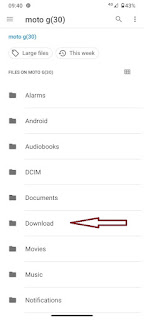
Now, on the App tap "Settings", then "Misc. Values". Tap "Import Mouldings File" and you will see a screen like this -

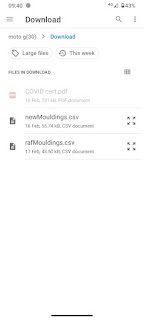
Select the "Download" folder (where the arrow is pointing) and you will then be shown all the text type files in that folder. (Nb. It may take a few seconds for the file to appear.)

All the downloaded csv files will be listed there. Tap the one you want to use and it will be imported into the App. If you make a mistake simply go back and import the correct one.

Easy!

Note - 
  • The csv file can be called anything (it used to have to be called "mouldings", no longer). 
  • If you download a file with the same name several times it will be titled name, name(1), name(2) etc. in the Download folder.
  • The list of files has the date by them to help identify the one you want.

Thursday, 6 January 2022

Download woes

 Computer security has improved vastly in the last few years. Systems really don't want us to do anything that might cause trouble. For instance if your browser sees you are trying to download a file it doesn't recognize and which has the potential for unwanted consequences it will try and stop you.

I noticed this when I was checking that the correct file for the latest Wessex Pricing Program had been put on the Wessex website.

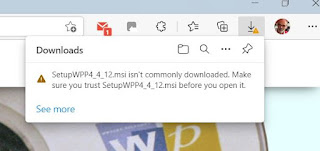
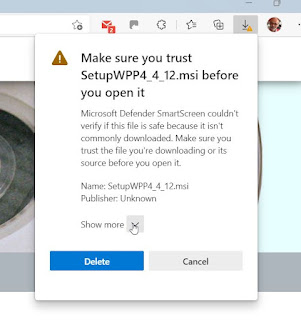
I'm using Microsoft Edge (so other browsers may be different) when I downloaded the Free Trial (SetupWPP4_4_12.msi) I noticed that there was a yellow triangle against that file in the downloads list.


 Looking directly in the Downloads folder in File Explorer it was labelled as "Unconfirmed download".

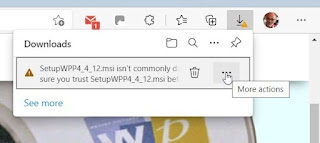
So, back to Edge. At the right side of the toolbar is the download list. Select "SetupWPP4_4.msi" and you will notice 3 small dots to the right. Click on those and select "Keep". 


Then yet another warning message appears. This time above the Delete button select "Show more" and then click on "Keep anyway".

You are now treated as an adult and can run the file!


Wednesday, 5 January 2022

Size Matters

 I'm sure that you have noticed that the size of the Wessex Pricing Program is fixed. There is a reason for that (skip the following paragraph if the brain is feeling a bit tired).

Computer screens are not only measured by size (usually diagonally across the screen) but also by "resolution" stated in "pixels". The more pixels the better detail that the screen can show. The computer I'm writing this on has a resolution of 1920 x 1080. Not too many years ago a resolution of (say) 1200 x 800 more would have been considered good. When you set a size for a form in a program it is set in pixels, not inches or Cm. So it will look smaller on a higher resolution screen, and larger on a lower resolution screen. 

Wessex Professional has stayed the same size ever since it was released. This way it would be good for older monitors. However, the difference between old and new monitor resolution is becoming quite pronounced and although there are things you can do to show the program at a larger size, what is really needed is the ability to resize the program to suit your screen. This is easier said than done. There are at least 27 "controls" (buttons, textboxes and so on) in the main screen and each one needs to be resized in proportion to its neighbour.

The problem is finally solved in the latest version (4.4.12). You can now resize and reposition the main form to suit your screen and the program will remember that for the next time.


The above screenshot shows the standard size, with the program always starting centre-screen.


This screenshot shows the program enlarged and repositioned. It will remember the size and position for next time it starts.

By the way, the computer these screenshots were taken from is running Windows 11. Wessex Professional is perfectly happy running on that.

Also in the new version is an improved "Moulding Needed" section ("Tools" > "Mange Database" > "Mouldings", click "Views" and choose "Moulding Needed" to show the moulding you'll need for your current jobs, and which you're likely to have to order).

The "Save invoice as PDF" in the Print section has had some potential errors corrected and should be more consistent. 

All that remains is to wish everyone a Happy and Prosperous New Year.


Friday, 8 October 2021

Coping with the "new normal".

Over the last few months we have seen increasing shortages and, more recently, galloping price increases.

Wessex Professional and The Framers Pricing App can help you to keep abreast of these changes and keep your business afloat and profitable.

Let's deal with price increases first.

It is important to remember that all suppliers in their terms and conditions reserve the right to change prices without notice. Obviously they try not to, but with prices so volatile it makes sense for us to go by the invoices we receive rather than waiting for a new price list to be issued. 

For mouldings this is easily dealt with in Wessex Professional by going through the invoice and Editing the moulding record to give the correct wholesale cost per metre. (If you are not registered for VAT make sure you include VAT in the figure to reflect the price you have paid.) In the App if you use # codes then redo the code for each of the mouldings in the invoice (Settings > Get Moulding Code). If you use a file imported into the App then you will need to open the file on your computer and edit it, save and import again.

For mountboard and glass there are a couple of ways to deal with price changes.

1) The easy way
If (for example) a mountboard increases from £6.00 to £6.60 a sheet (10%), then simply increase the mount cost by 10%.
For instance - I charge a plain (whitecore) mount at 0.32 pence/sq. cm. So I would increase that cost to 0.352 pence/sq. cm.
I would keep the "Start From" charge the same because that really represents the labour cutting the mount (presumably that will need to increase at some point, but it's not directly related to the material cost).

2) Getting back to basics
There are 9,930.8 sq. cm. in a Larson Juhl board. (122 x 81.4) divide that by the cost of the board in pence to get how much the board is costing per cm. (£6.00 per board = 600 pence = 0.06 pence/sq. cm. Actually 0.0604180932049785 pence!)
Multiply that by a markup (between 4 & 7 usually) to get the main cost figure. Nb. markup is quite high because of the amount of wastage in glass and particularly mountboard.

To make the changes - in Wessex Professional go to Settings > Values and choose the Mount or Glass tab. Select the type of glass or mount you want to change from the dropdown list. Put in the new value and "Save", then go on to the next one.


In the Pricing App go to Settings and choose Mount Values or Glass Values. Tap the top panel for a list of Labels and their values. Select one, change the figures and Save Item. 

Both the Pricing App and Wessex Professional work out prices in the same way. 

Now let's look at how to deal with shortages.

 Because the Pricing App doesn't keep a record of stock or jobs you are going to have to rely on good old "memory mark 1"! 

But Wessex Professional can help. If you know a moulding is unavailable you can check whether you have taken jobs for it by going to Tools > Manage Database > Worktickets. Then choose Views, List By Item. Select "Moulding" and enter the moulding code in the pop-up box. You will then see a list of all the jobs to be completed which use that moulding.


Similarly, you can check glass in the same way. The program won't make the shortages go away, but at least you'll have the information on which to base a decision.

(At the moment the Mount option only shows the type of mount, not the colour. So, unfortunately, that won't help when a particular colour is not available, though it's usually possible to get a acceptable alternative from a different manufacturer).  

All that is probably a lot to take in, but for some bedtime reading have a look at Picture Frame Pricing Programs: Frame Pricing Talk (stevetheframe.blogspot.com) for a overall view of pricing.


Friday, 4 June 2021

Yet another new version - what's that all about?

 It was only a month ago that 4.4.10 was made available to download, and now there is 4.4.11. So what's going on?


I'll put my hand up and say that some "issues" had been found in the previous version. This new download sorts them out.

  • An issue when the program was networked - it was possible for different computers to issue invoices with the same number.
  • Extra Cost - if the Extra Cost "includes vat" box was ticked the full extra cost was shown on the main form, rather than the net amount. However the final price was accurate.
  • If the box to record the amount of deposit was left blank, then the program would throw up an error. Now it assumes you meant that customer did not pay a deposit (ie. 0).
  • Searching through the Customers - the surnames were displayed in alphabetical order, but not necessarily the initials.
Hopefully, now we're back on track to issue updates every 9 -12 months again.

Saturday, 8 May 2021

What the # ?!

 I mentioned in a previous post that I would explain about price codes.

If you think about it all the program needs to work out a frame price is the cost of the moulding and its width. Once it knows the rebate dimensions it can work how much moulding will be needed (2 * X + 2 * Y, + 8 * moulding width)

This was the principle that the first Wessex Pricing Program (WPP1) used.
The idea was resurrected in the Framers Pricing App. Here the App can work out a cost either by using an Id number from a csv file (for instance "PW112"), or a pricing code which contains the information needed.
How does the App distinguish between the two?
The price code always is always preceded by "#" (eg. #34G). The numbers represent the moulding cost, while the letter represents the width.
In practical terms, there is a utility in the App (and now in the desktop program) whereby you can enter the cost and the width of a moulding and it will issue a code that you can write on the moulding sample.
(App - go to "Settings" and tap "Get Moulding Code". WPP4 - go to "Tools" > "Get Moulding Code") It is now easy to give a price - put in the dimensions, look on the sample for the price code and enter that, together with glass, mount and sundries.
It is good practice to check the code each time you get an invoice for that moulding.

The sharp-witted amongst you will have spotted that the code does not identify an individual moulding, A moulding with the same cost and width will have the same code. So, if you are recording a job, you will need to be able to identify the particular moulding.
In WPP4 you can do this in the "Notes" section when saving the Job. With the App the world is your oyster! You could record the details in a duplicate-book or you could take a screen-shot of the price and a photo of the work and sample(s), being careful to marry up the two images (rename them in file manager), or a mixture of the two.
Also, the width part of the code (the letter) covers a number of Mm. and so is not quite precise. In practice the effect on the final cost is minimal.

So why go with this form of pricing when other more exact ways are available?
Simply because it is so straightforward and easy to understand. There are no databases to maintain, no csv files to wrestle with. The costing is slightly less exact (by pence not pounds), but if your margins are that tight then use a different system. 
Another reason to include these codes in WPP4 is to better integrate the program with the Pricing App. Already you can export a file of mouldings from the desktop program to the App, now you can go the other way and use the App's pricing codes in the main program.


Wednesday, 5 May 2021

User Requests and a New Version

 Version 4.4.10  

Most of the features in this update are based on ideas and requests from framers who use the program.

  • You can now save a first name to the customer record, not just an initial. Upto 15 characters.


  • You can search the customers by their telephone number as well as their name. Useful if someone rings or texts and doesn't leave their name.


  • While I was at it, I took the opportunity to improve the name search itself. Previously the search was just on the surname. So search for "SMITH" and all the Smiths would come up and you'd need to scroll through until you'd found the right initial and phone number. Now now you can type "SMITH" then "space", then the initial/first name - much more efficient. It is also the same when searching names to save with the invoice and when searching through the work tickets to find a customer's past jobs.
  • This next one is for users who also have The Famers Pricing App on their phone. You have for a few years now been able to create a file of your mouldings and their prices which can be imported into the App ("File" > "Create Mouldings.csv"). So that the App and Wessex Professional are working with the same data (they work out the prices in the same way). The App can also work out prices using a moulding code (beginning with "#"). But Wessex Professional would not recognize these codes - until now! It is quite a big subject and I plan to write a post about these codes, but for now, if you use # codes with the App you can use them with Wessex Professional too.


  • I have also corrected a problem that could occur when editing a job on the Jobs list (before it is saved to an invoice). This is a useful feature if the customer changes their mind about an earlier job (say, they want to change the type of glass). Click on the job you want to change - you'll have choice to Edit, Delete or Cancel.

If you choose Edit You'll be taken back to the pricing tab with all the details in place for you to change. You'll notice the "Add to Invoice" button has changed to "Update Invoice". Previously, if you had used an "Extra Cost" in that job this wasn't included in the price data (even though it was shown). This has now been sorted out, even if you have called Extra Cost something else.

  • Wessex no longer sell the "Basic" version of the program (WPP4B), which has really been overtaken by the Framers Pricing App. However this causes a problem if someone has that version and wants to put it on a new computer. Upto now it hasn't been possible, but now, if your computer dies and you need to put the Basic version onto a new machine, you can do so (contact Wessex for a new enabling code)..

So, a big thank you to those framers who made the suggestions.

One thing to note however, is that once you have run the update you will not be able to import the database into an earlier version of the program (though why would you want to? - The updates are free and there is no advantage in using an out-of-date version).

Tuesday, 23 March 2021

Mainly about Mac

 Let's be quite clear - it is NOT possible to install The Framers Pricing App on an iPhone or an iPad. 

The operating system for these devices is IOS, which uses a different code to that of Android. Also Apple is very careful (controlling?) about what you are allowed to install on your device. This means from a developer's point-of-view (ie. me) it is not worthwhile to jump through the hoops that Apple set, as well as maintaining 2 sets of code unless the App is for the mass market. (Sorry all you Framers, there just aren't enough of you!)

The solution I recommend is to buy a cheap  Android phone or tablet (have a look on Ebay). It does not need to be connected to a phone network, so no sim card, just connect to the wifi at home so you can download the App from Google Play. You don't need to do anything else, just know how to turn the device on and tap The Framers Pricing app icon. Everything else phone-related, you continue to do on your Apple device. 

Wessex Professional is designed for Windows and will not directly run on an Apple Mac, or MacBook (which use the OSX operating system). It is however possible to to install and run the program on a Mac with some other software. 

In previous posts I have mentioned CrossOverMac as worth looking at. 

There are other alternatives

  • Wine. This is a free alternative to CrossOverMac, but rather more fiddly to set up.
  • Boot Camp. This utility comes built into your Mac. Each time you start the computer you are able to choose between Windows or Mac. The problem is that in order to switch between to two systems you need to restart the computer. Also, you need a copy of Windows 10.
  • The first (restart) problem is solved by using Parallels. You can switch between Mac and Windows without having to reboot the computer. I have seen it working and because Wessex Professional is running under Windows (albeit on a Mac) the program looks exactly as it should. (Wine and Crossover use a different system and the appearance is slightly different). However, you still need a copy of Windows 10 - expensive right? Wrong - have a look at UnitySoft for bargain basement software prices. 
All of these solutions cost less than £100 at the time of writing. 
So, if you like Apple products and you want to use the best framers pricing software, you don't have to choose between the two.


Thursday, 24 December 2020

Networking - using the Pricing Program on 2 (or more) computers

Everyone is different. Many framers just need their pricing system on one computer, but others perhaps have a large shop, or a separate workshop, or even more than one premises. All of these scenarios (and I'm sure there are many others) need the pricing and job information system on more than one computer.

It doesn't cost you any more to put Wessex Professional on all your devices (you just need an enabling code for each one from Wessex). But merely installing the program on each device will mean that they will each use their own (internal) database. Ideally we need the group of programs to use the same database, and of course, we can configure Wessex Professional to do just that.

Before we continue I need to point out that this solution is only suitable for a small scale system. Larger systems with many database transactions per second would need the database held on a server which would handle the transaction requests.

So, down to the nitty-gritty. 

  • Having installed the program on our devices we need to put the database file that we want to use ("V3.mdb") somewhere that all the devices can "see". If you have created your own private network it could be in a folder somewhere on that (Look at the Networking section in the "Help" file, press "F1"). 
  • The easiest way, however, is to use a cloud storage location such as "Dropbox" or "OneDrive". Make a folder there and copy your database file into it.
  • In the program go to "Setup" . "Options" and select the "NetWk/BkUp" tab.

  • At the top tick "Use networked database", and  then click the box below that to bring up a dialog to select the location of the database you are going to use.


  • Select the file (click "Open") and the network box should look something like this - 


  • Remember to click "Save".
  • Repeat this for each computer.
Now all the devices will use the same database. (For instance, if the workshop marks a job as "Complete" then the shop can immediately see that.)

The database file contains all the information for Customers, Mouldings and WorkTickets. There is one other file that contains information for prices and labels ("User.xml"), this is not networked and needs to be put on each device individually ("Setup" > "Values" and then click "Export" or "Import").

So, why not be able to network this file as well?
Two reasons
  1. The file is only modified occasionally, unlike the  database file. So it's not too much of a chore to copy it to each device when it's changed.
  2. It could be that you need the device to issue different prices. For instance one device issues trade prices, while another issues retail. Or one branch of the business only deals with simple jobs, while another deals with more complex framing.
NB. One point to remember is that you will need to make sure that the database file is regularly backed up, as the program's automatic backup feature does not work with a networked database.

All in all setting up Wessex Professional to use a network is not too difficult to do, but I suggest you choose a quiet time (a lockdown project?)


Thursday, 10 December 2020

Good to Know

The scenario - You are new to the Wessex Pricing Program. You want to get the best out of it. You need it to work for your business.

There are a number of key blog posts that will help you hit the ground running.

The first is the transcript of a talk about frame pricing made to a Fine Art Trade Guild meeting. 

Picture Frame Pricing Programs: Frame Pricing Talk (stevetheframe.blogspot.com)

The second link is about the general operation of the program.

Picture Frame Pricing Programs: 3 Steps to Heaven (well actually 8) (stevetheframe.blogspot.com)

The next 2 links are about performing a bulk update on the Mouldings records from an Excel file.

Picture Frame Pricing Programs: Updating Mouldings - Do it right! (stevetheframe.blogspot.com)

Picture Frame Pricing Programs: Creating a bulk update file (stevetheframe.blogspot.com)

Updating from a supplier's file is the area I get the most questions about. The above two posts are pretty comprehensive. The only recent point to add is -

If you are adding a supplier's mouldings for the first time then you will need to create one (dummy) record manually (Tools > Manage Database > Mouldings, then Select File > New Record). The supplier will then appear in the dropdown menu for you to select.

This is to stop the problem of a supplier ending up with two different names (ie. Rose&Hollis and R&H) the database will treat these as different suppliers, so giving rise to problems.

Obviously there are lots of other posts and points to make, but you should be doing things the right way if you've looked at those 4 links.


Thursday, 24 September 2020

Why buy Wessex Professional?

 Of course, I think Wessex Professional is the best pricing and job organization program that picture framers can buy, but then I would, wouldn't I?

In case that doesn't convince you here are some hard reasons to use Wessex Professional rather than any other system.

  • User-friendly interface. Because the program has been designed by a professional framer it is an unobtrusive tool to use while talking with the customer and recording a sale. (Your attention needs to be on your client, not a computer).

  • Gives you complete control of your prices. The way Wessex Professional works out a price (the algorithm) is transparent and easy to understand. I believe that it is important for framers to take responsibility and set their own prices, which will reflect the business in their area.
  • Can use any suppliers' mouldings. You can create database records for mouldings from any supplier - not solely Wessex Pictures (in fact you don't have to have any Wessex records at all - but don't tell Wessex that!)
  • Easy set up. I won't deny that you will need to spend some time setting up the program to give the prices you want. But the process is simple and you can start off with some suggested values which can then be adjusted. Be suspicious of any system that claims to work out of the box. 
  • Cost. £295 + vat - you own the program, it will very quickly save you money over those systems that are rented or leased.
  • On as many computers as you like. Wessex Professional can be networked for use with more than one computer. At no extra cost.
  • Free Updates and Support. Updates to the program (once or twice a year) are free. These often include features suggested by other framers. Help and support is also free. If you cannot find the answer in the program's Help files then a call to Wessex will get the problem sorted out.
  • The Data stays on your system. The program does not need an internet connection, your data files are on your computer system (which you control).
  • Proven System. The pedigree of Wessex Professional goes back to 2004, when we released The Wessex Pricing Program (WPP1). It was a simple price calculator, the precursor of the current sophisticated program.  
You don't even have to take my word for it - download the free 30 day trial and see for yourself.

Thursday, 17 September 2020

What I did in lockdown

Part of my lockdown was coding the latest ideas for Wessex Professional. A couple of months testing after we reopened and the result is a new version of the program (ver. 4.4.9). 

So what's new?

  • When an invoice is saved you can now see how many items are scheduled for collection on that date (and so you can change the date if necessary).

  • The Location function has been improved. You can enter a location straightaway and also search the workticket list by Location ("Tools" > "Manage Database" > "Views" > "List by Item"). This is very handy if you send work off-site. It could also be used track work given to individual members of staff. In fact I nearly relabelled it "Anything-Else-You-Want"! (You have upto 20 characters to play with). In effect it is a user-defined searchable parameter added to the job record.


  • Because I been a framer for some time I know that there is always something new, or something that only occurs once in a blue moon, so the Wessex Pricing Programs have always had an option to include an "Extra Cost". Now you can directly label that Extra Cost (upto 15 characters). So the reason for the cost is clearer, both for you and the customer.


As always - before you install the new version take a copy of your database (V3.mdb) and labels/values file (User.xml) just in case!
Enjoy.