I guess the most common question we get asked about the Wessex Pricing Programs is "Will it run on a Mac?"
The short answer is "No.".
The long answer is "Very probably.".
The problem is that the Mac operating system and the Windows operating system are very different from each other. They won't recognise each other's files or know how to execute them. Things have got a little easier now that Apple has moved to an Intel processor, but there is still a big gulf between the systems (and, for that matter, Linux, a third system, but see the footnote at the end for that.)
Now, before we go any further, I will nail my colours to the mast and say that I've never used a Mac, so all that follows is from a Windows perspective and I apologise now if I've got anything wrong.
It seems that there are three main ways of getting a Windows program to run on a Mac.
The first is "dual boot". This means that both Windows and the Mac operating systems are on the computer, and you have to choose one or the other when the computer starts. (I believe there is a utility on the Mac called "Boot Camp" that assists with this.) There are two obvious problems with this - a) you can't easily switch between systems, b) you have to buy both systems.
The second way is "Virtualisation". This means you can have Windows running within the Mac system and can switch quite easily between the two. However, you still need to have a full copy of Windows, and the "VM" (virtual machine) software is not the easiest thing in the world to use.
Now we come to the third way - software that will translate the Windows code into something the Mac will understand.
This is where a program like "Crossover Mac" comes in (http://www.codeweavers.com/products/cxmac/ ) Although I haven't used it myself, I have looked at the details and it seems to tick the right boxes. There's a free trial to check that it will actually work and it's reasonably priced if you do decide to buy.
At the beginning of this post I mentioned another operating system - Linux. This comes in lots of varieties, the most popular at the moment being "Ubuntu". The reason I mention it is that it's very secure (based on the Unix mainframe system) and it's free (together with most of its software). As long as you are just using standard office type tasks the system is easy to use. There are the same problems getting Windows programs to run as with a Mac, and the same solutions exist. There is a program called "Crossover Linux" and also a free solution "Wine" - I must get tinkering!
Tuesday, 30 March 2010

Tuesday, 16 February 2010
Networking
I thought that it would be useful to write a post detailing the steps to prepare Wessex Premier & Professional to work over a network.
I've suggested in the Help files that networking is still very much a "Dark Art" and even with the coming of Windows 7 I haven't changed that view. There are just too many obscure acronyms and settings for most normal people. So, you might find it advantageous for your sanity to have a network expert to actually get the computers "talking" to each other.
When I talk about networking these programs I'm assuming, say, a computer in the shop and another in the workshop, certainly not more than five computers anyway.
>As far the Wessex Professional & Wessex Premier are concerned the concept is as follows – There is a “Master” computer (usually the one which will issue the prices & print off the invoices), this will hold the database file to be used over the network. The Master computer is networked to one or more “Slave” computers, they also have a copy of the program installed. But instead of using their own database the “Use network database” box is ticked, the path to the master computer's database is recorded and that file used instead
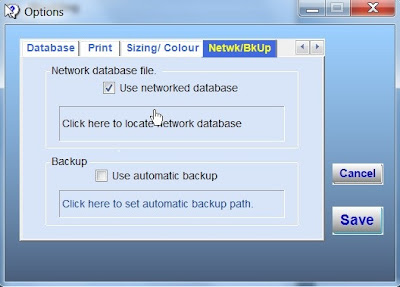
All this is achieved by-
NB. The labels and values in all the computers should be the same. This is easily achieved by going to "Values" and clicking "Backup" on the master computer, and copying the file (User.xml) to a memory stick. Then, on the slave computer(s) going to "Values" and clicking "Restore" and copying that file onto them.
I've suggested in the Help files that networking is still very much a "Dark Art" and even with the coming of Windows 7 I haven't changed that view. There are just too many obscure acronyms and settings for most normal people. So, you might find it advantageous for your sanity to have a network expert to actually get the computers "talking" to each other.
When I talk about networking these programs I'm assuming, say, a computer in the shop and another in the workshop, certainly not more than five computers anyway.
>As far the Wessex Professional & Wessex Premier are concerned the concept is as follows – There is a “Master” computer (usually the one which will issue the prices & print off the invoices), this will hold the database file to be used over the network. The Master computer is networked to one or more “Slave” computers, they also have a copy of the program installed. But instead of using their own database the “Use network database” box is ticked, the path to the master computer's database is recorded and that file used instead
All this is achieved by-
- Install the program on each computer (you will need an enabling code from Wessex for each one.
- On the master computer navigate to "All Programs" - "Accessories" - "Windows Explorer". Then, on the left hand pane (in Windows Explorer) go to "My Computer" - "C:" - "Program Files" - "Wessex Pictures". Right-click on this folder, then select "Sharing & Security". Tick "Share this folder on the network", also select the permissions you want (ie. whether the slave computers(s) can modify the files). Click "Apply".
- On each of the slave computers tick the "Use networked database" box (in "Setup" - "Options"). Then click the "... locate network database." label. With the dialog box - on the left hand pane select "My Network Places" and the shared folders will appear. Double-click the Wessex Pictures folder, keep double-clicking until a screen with 6 folders (4 in Wessex Premier) and a file titled "V3" appear. Highlight "V3", then click "Open". The dialog closes and the path to the database is shown (it will be something like "\\main\wessex pictures\Wessex Professional\V3.mdb")
- Click "Save" on the Options form and close it. The slave computer will now use the master computer's database.
NB. The labels and values in all the computers should be the same. This is easily achieved by going to "Values" and clicking "Backup" on the master computer, and copying the file (User.xml) to a memory stick. Then, on the slave computer(s) going to "Values" and clicking "Restore" and copying that file onto them.
Friday, 8 January 2010
"I didn't know you could do that."
Some tips & tricks that make Wessex Premier easier to use.
- Use the "Tab" key to move from box to box on the main form - its been designed to move in a logical order and is quicker than using the mouse.
- After clicking "Total Price" hold the cursor over the Moulding ID box and it will give you the Supplier & the Supplier Number - the new WPP4 will also show the quantity needed and how much is in stock too.
- Moulding not in the database? - Type "GUEST" into the Moulding ID box, then when you click "Total Price" you will be asked for the width (in Mm) & price (per Mt.) and the program will work out the price.
- Want to give the customer a special price? In the new WPP4 you can double-click the total price box and then enter the agreed price (it will be shown in green as a prompt, and blue if the minimum charge has been applied).
- Using the "Enter" (Return) key is the same as clicking "Total Price", but quicker.
- Press the "Esc" key to clear the form, again quicker than using the mouse.
- "Alt" + "R" is the same as pressing the "Reset" button in Wessex Premier & the Full version of WPP4.
Friday, 4 December 2009
New Program
I'm pleased to reveal that after 2 years development Wessex Premier Professional will be released at the Spring Fair in February 2010 at the NEC.
It's a major redesign of Wessex Premier, as well as being two programs in one. You can start off with the Basic version which issues prices and just uses the Mouldings part of the database. Then, when ready, you can upgrade to the Full version which keeps track of Work Tickets, Invoices and so on. All the records, labels and values from the Basic version are carried across thus making upgrading as painless as possible.
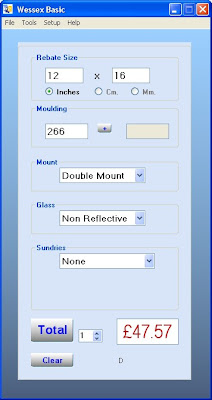 Above is a screenshot of the main form of the Basic version.
The main form of the Full version will be familiar to all who know the original Wessex Premier. Its layout has proved to be easy to use and understand as well as being versatile.
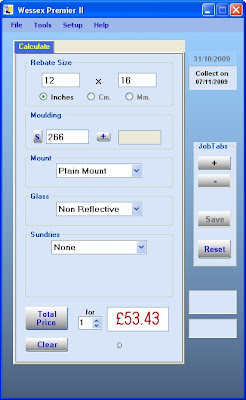 The Full version has many new features, which I won't detail here except to say that none of the features have been included for their own sake - they all help to make the program quicker, more productive and easier to use.
For those of you interested in the technical details - The program has been written in VB 2008, and uses the .Net Framework 2.0. This enables the program to be restarted programmatically, and I don't need to use a third party control for the menustrip customization.
Perhaps the bit I'm most pleased with is something you hardly notice - the buttons, I haven't counted but there must be about 50 of them in the program. Previously the graded shading on them was achieved calling a sub-routine every time the control was "painted" (ie. many time a second). Now I've written a custom control which does this and more (the lettering moves to indicate the button has been clicked and a dotted line appears when the button "has focus"). By including this new control the final compiled program was some 25% smaller, all contributing to the efficiency of the new program.
We've been using this new version of Wessex Premier in our shop since the summer and have been really pleased, I certainly wouldn't go back to the previous version.
So I look forward to talking about it to people at the Spring Fair.
It's a major redesign of Wessex Premier, as well as being two programs in one. You can start off with the Basic version which issues prices and just uses the Mouldings part of the database. Then, when ready, you can upgrade to the Full version which keeps track of Work Tickets, Invoices and so on. All the records, labels and values from the Basic version are carried across thus making upgrading as painless as possible.
 Above is a screenshot of the main form of the Basic version.
The main form of the Full version will be familiar to all who know the original Wessex Premier. Its layout has proved to be easy to use and understand as well as being versatile.
 The Full version has many new features, which I won't detail here except to say that none of the features have been included for their own sake - they all help to make the program quicker, more productive and easier to use.
For those of you interested in the technical details - The program has been written in VB 2008, and uses the .Net Framework 2.0. This enables the program to be restarted programmatically, and I don't need to use a third party control for the menustrip customization.
Perhaps the bit I'm most pleased with is something you hardly notice - the buttons, I haven't counted but there must be about 50 of them in the program. Previously the graded shading on them was achieved calling a sub-routine every time the control was "painted" (ie. many time a second). Now I've written a custom control which does this and more (the lettering moves to indicate the button has been clicked and a dotted line appears when the button "has focus"). By including this new control the final compiled program was some 25% smaller, all contributing to the efficiency of the new program.
We've been using this new version of Wessex Premier in our shop since the summer and have been really pleased, I certainly wouldn't go back to the previous version.
So I look forward to talking about it to people at the Spring Fair.
Saturday, 31 October 2009
A Database tweak
Fiddly things databases - just when you think you have everything just so, something else comes along to upset the balance.
I recently came across one such hiccup (or a least potential hiccup) in the "Mouldings" table of the Wessex Premier database.
The field "Supplier No" is structured not to allow duplicates. Now 99.9% of the time this will make no difference at all, in fact it can be very useful as it means that the mouldings which are duplicated between Wessex & Frinton cannot be duplicated in the program's database records. However, it could be that 2 different suppliers use the same number, or the user may want to show both the Wessex and the Frinton records.
So, how to solve the problem? I tried various programmatic solutions, but none worked consistently. So, given that most users probably wouldn't want to change the database file, what's the answer for those that do?
You'll need to use Microsoft Access (I tried this on Open Office Base, but no joy).
First of all "Export" (copy) the database file (called "V3.mdb") to a suitable location, as it's always best to work on a copy rather than the master file.
Double-clicking the file will open it in Access (assuming that is your default database program). On the left hand side you'll see a list of the tables ("Customers", "WorkTickets" and so on) Double-click the "Mouldings" table to open it. A chart with all the records will be displayed.
In the top left just above the table list is "Views", click this and select "Design View". The main window will now show a list of the fields in the Mouldings table and their properties. (see below)
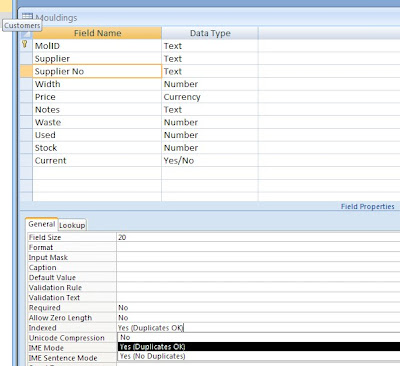
Select "Supplier No". Below is a list of the properties for that field.
Select "Indexed" and change "Yes, (No Duplicates)" to "Yes, (Duplicates OK)".
"Save" the changes and you're done, all that remains is to "Import" the modified file back into Wessex Premier.
Points to note -
You should regard this "tweak" as one way only, because, once you have added a record with the same supplier number as another record, Access will not allow you to change back.
You change any of the other properties at your peril!
The above screenshot was from Office 2007, be sure, however, to save the database as an Access 2000/2003 file (ie. a .mdb file not a .mdbx file).
The steps in Office 2003 look different, but are basically the same. (If that's not too double-dutch!)
Thursday, 1 October 2009
Backup or C***up?
When the program was originally released there was the usual menu option to copy the database file to somewhere and a recommendation in the Help section to do this at least once a week. With 20/20 hindsight this was hugely optimistic.
Although computers and more specifically hard drives have become far more reliable over the years - them can still fail suddenly. In fact many take the view that once a hard drive is 4-5 years old you are on borrowed time.
So, what's the answer?
Of course, there are lots of answers (you knew that was coming didn't you?) and the trick is to find one that suits you.
Of course, there are lots of answers (you knew that was coming didn't you?) and the trick is to find one that suits you.
In the (good?) old days of MSDOS you just got a bunch of floppy disks and copied the whole system onto them. With the coming of Windows that became unrealistic and just backing up (or not) your documents became the norm. With the greater reliability it was (is) very easy to let things slide and not take any precautions at all. Of course, as in other areas of life - take no precautions and you'll eventually get caught out!
After a couple of phone calls from framers telling me their computers had died, was there any way to get back their data? And no, they hadn't taken any copies! Well, I started to wonder how to lessen the worry and let the computer do the work.
The answer I came up with was to get the program to copy the database file to a specified location every time it was shut down (in most framing shops this means at the end of each day). Simple, eh? Of course it requires a bit of thought as to where the file is to be copied. The easiest being a USB flash drive permanently plugged in, or else a second hard drive in the computer (a network place should also be possible, though I haven't tried it). What you don't want to do is to copy the file to the same hard drive, because if that fails it takes your backed up file down too.
There are some points to beware of however, one is that USB flash drives can and do fail - so make sure you have a spare. The other is bit more complicated - suppose for some reason the database file you are using with the program becomes corrupted, when you shut the program down the corrupted database will over-write the previously saved good file. Not a good idea, - so if you suspect your database is not right then the correct action is to copy the backed-up file somewhere else before you shut the program down.

The answer I came up with was to get the program to copy the database file to a specified location every time it was shut down (in most framing shops this means at the end of each day). Simple, eh? Of course it requires a bit of thought as to where the file is to be copied. The easiest being a USB flash drive permanently plugged in, or else a second hard drive in the computer (a network place should also be possible, though I haven't tried it). What you don't want to do is to copy the file to the same hard drive, because if that fails it takes your backed up file down too.
There are some points to beware of however, one is that USB flash drives can and do fail - so make sure you have a spare. The other is bit more complicated - suppose for some reason the database file you are using with the program becomes corrupted, when you shut the program down the corrupted database will over-write the previously saved good file. Not a good idea, - so if you suspect your database is not right then the correct action is to copy the backed-up file somewhere else before you shut the program down.
So much for protecting the data produced by Wessex Premier, but what about all the other important documents, photos, movies etc. that accumulate on your computer? Well, the obvious thing to do is copy them to an external hard drive (which are pretty cheap nowadays) or use another solution that I've been impressed with - namely backup to an external server. I've used Humyo (www.humyo.com) and the software they provide (so if you add or make changes to your documents these are uploaded to their servers straight away). This way, if the house goes up in flames it won't mean the lose of years of accounts, letters, pictures and so on. Another bonus is that I can access the account from any internet-connected computer - surprisingly useful.
Wednesday, 12 August 2009
File wars - XML v TXT v Registry
Most serious programs need to save data in one form or another and there are lots of ways to accomplish this.
I'm going to divide this data into three types - 1 - Program preferences, 2 - Temporary data created by one part of the program and used by another part, 3 - Data records (ie. relational database)
For number 3 the answer is (relatively) straightforward - use a DBMS (database management system) such SQL Server, MySQL, MS Jet (as used by the Wessex Programs) or similar. All the complex database work is taken care of and there is a wealth of documentation to fall back on. (This may be the subject of a future posting.)
But for type 1 and 2 data, the answer is anything other than easy.
Program preferences traditionally have used the "Registry" to store values.
For those who haven't come across the Registry it is a (big) file where everything from the default Word font to the hardware available is stored. This is a really important file and changes to it could stop your computer working, that said if you (in XP) click "Start" - "Run" and then type "regedit" in the box you will see the registry in all its glory, - don't change anything though!
Preference Data
Now, the first two Wessex programs (WPP1 & WPP2) stored their preferences in the registry (Visual Basic makes this easy to do using the GetSetting & SaveSetting functions), but with Wessex Premier the preferences really got too many to save in this way. Programmers have a responsibility to keep registry entries to a minimum, one reason is that the values become too unwieldy to manipulate as a whole, another is that if the program is uninstalled the entries often remain and clog up the system (I ran a registry cleaning program recently on my laptop and found over a thousand orphan entries).So, what's the alternative? The one I chose was to write a "class"(a discrete piece of code that adds functionality to the program language) which mimicked the GetSetting & SaveSetting functions but instead of saving the values in the registry - they are saved to an XML file which is easy to save, move and copy.Let's not get too technical here - what's an XML file? XML stands for Extensible Markup Language and can take the form Key - Sub-Key - Value, eg. "Glass" (key) "Standard Glass" (sub-key), "1.2" (value). Thus making it especially useful for data files.
Temporary Data
This use of XML was very successful, so I wondered if I could use this type of file for scenario 2 (temporary data created by one part of the program and used by another)? In Wessex Premier price & work details can be saved to a file temporarily until the customer has finalized their order, they are then saved to the database - an invoice & work tickets are printed and the files used deleted.
When the program first came out this temporary save was achieved using Text (TXT) files. These type of files have been around for years, the values are separated by quotation marks, (eg "1.2""Landscape" etc). The program knows which value is which by its position in the file (eg 6th value is glass, 7th is job description and so on). All was fine and dandy until you wanted to note the mount margins in inches, such as - 2" t & s 2.25" b. Now the extra quotation marks confuse where one value ends and another begins, the program can't decipher the values and so can't save to the database. Once this problem was pointed out I solved the problem temporarily by not allowing the user to key in quotation marks.
But by using the XML format all this is avoided - instead of dealing with a preference file "user.xml" a file called "jobs.xml" (then "job1","job2" & so on) is saved until needed by the database and then deleted.
But by using the XML format all this is avoided - instead of dealing with a preference file "user.xml" a file called "jobs.xml" (then "job1","job2" & so on) is saved until needed by the database and then deleted.

If you want to take a closer look at XML files (& see what's inside them) search for "XML Viewer" a small, free program that is easy to use.
Subscribe to:
Posts (Atom)