Showing posts with label Editing Database. Show all posts

Friday, 8 October 2021

Coping with the "new normal".

Over the last few months we have seen increasing shortages and, more recently, galloping price increases.

Wessex Professional and The Framers Pricing App can help you to keep abreast of these changes and keep your business afloat and profitable.

Let's deal with price increases first.

It is important to remember that all suppliers in their terms and conditions reserve the right to change prices without notice. Obviously they try not to, but with prices so volatile it makes sense for us to go by the invoices we receive rather than waiting for a new price list to be issued. 

For mouldings this is easily dealt with in Wessex Professional by going through the invoice and Editing the moulding record to give the correct wholesale cost per metre. (If you are not registered for VAT make sure you include VAT in the figure to reflect the price you have paid.) In the App if you use # codes then redo the code for each of the mouldings in the invoice (Settings > Get Moulding Code). If you use a file imported into the App then you will need to open the file on your computer and edit it, save and import again.

For mountboard and glass there are a couple of ways to deal with price changes.

1) The easy way
If (for example) a mountboard increases from £6.00 to £6.60 a sheet (10%), then simply increase the mount cost by 10%.
For instance - I charge a plain (whitecore) mount at 0.32 pence/sq. cm. So I would increase that cost to 0.352 pence/sq. cm.
I would keep the "Start From" charge the same because that really represents the labour cutting the mount (presumably that will need to increase at some point, but it's not directly related to the material cost).

2) Getting back to basics
There are 9,930.8 sq. cm. in a Larson Juhl board. (122 x 81.4) divide that by the cost of the board in pence to get how much the board is costing per cm. (£6.00 per board = 600 pence = 0.06 pence/sq. cm. Actually 0.0604180932049785 pence!)
Multiply that by a markup (between 4 & 7 usually) to get the main cost figure. Nb. markup is quite high because of the amount of wastage in glass and particularly mountboard.

To make the changes - in Wessex Professional go to Settings > Values and choose the Mount or Glass tab. Select the type of glass or mount you want to change from the dropdown list. Put in the new value and "Save", then go on to the next one.


In the Pricing App go to Settings and choose Mount Values or Glass Values. Tap the top panel for a list of Labels and their values. Select one, change the figures and Save Item. 

Both the Pricing App and Wessex Professional work out prices in the same way. 

Now let's look at how to deal with shortages.

 Because the Pricing App doesn't keep a record of stock or jobs you are going to have to rely on good old "memory mark 1"! 

But Wessex Professional can help. If you know a moulding is unavailable you can check whether you have taken jobs for it by going to Tools > Manage Database > Worktickets. Then choose Views, List By Item. Select "Moulding" and enter the moulding code in the pop-up box. You will then see a list of all the jobs to be completed which use that moulding.


Similarly, you can check glass in the same way. The program won't make the shortages go away, but at least you'll have the information on which to base a decision.

(At the moment the Mount option only shows the type of mount, not the colour. So, unfortunately, that won't help when a particular colour is not available, though it's usually possible to get a acceptable alternative from a different manufacturer).  

All that is probably a lot to take in, but for some bedtime reading have a look at Picture Frame Pricing Programs: Frame Pricing Talk (stevetheframe.blogspot.com) for a overall view of pricing.


Friday, 9 November 2018

version 4.4.6

Wessex Pricing Program version 4.4.6 - so what's new?

Basic and Full versions
Well, the first thing corrects an anomaly where if you changed the default moulding markup only the mouldings added subsequently to the database used that new default. You would have to change the existing records individually if you wanted them to use the new markup. Not user friendly!
In the new version any moulding which has the old default as its markup will be automatically updated to the new default.

Full version
The database has room for 50 characters (inc. spaces) in the mount record (made up of the mount type and the colour(s)). It was possible to get all the way to the point where you saved the invoice only to find an error because in one job you had tried to use more than 50 characters in the mount record.
Now, if you try to use more than 50 characters you are warned when you try to add the job to the invoice.

Full version
The other noteworthy change in this version had me thinking "Why didn't I think of that before?"!
The workticket has two dates - the date the work was received and the date that the job needs to be completed by.
Now, when the work is collected and you edit the workticket to tick the "collected" box, the complete-by date is changed to that day's date, thus giving you a record of when the work was taken by the customer.


You can view collection records by going to "Tools" > "Manage Database" > "WorkTickets" and then click "Find Record". Initially "Find Records by" and "invoice number" is shown. Click the downward pointing arrow and choose "Collection Date". Then you'll be able to pick a date to see the jobs collected on that day.
The program knows when you installed the update, so only worktickets after this date are changed. (ie. worktickets before that date will still read "Collect on" and the original completion date. Only records after that date will have the actual collection date.)

Sunday, 26 June 2016

Keeping upto date

We woke up on Fri 24th June to hear that a huge change had taken place in this country. Whether your view is that "Turkeys have voted for Christmas" or "The bright dawn of a new era" as framers we need to keep upto date with what could be large price swings. (Much of the materials we use are imported and subject to currency fluctuations.) If we don't then our businesses will very quickly become unprofitable and untenable.

Wessex Pricing Program makes it easy to keep up with any price changes.

When you get an invoice for a moulding order check the cost against the database ("Tools">"Manage Database">"Mouldings" and enter your moulding ID in the yellow box. Click "Find" and the record will appear. If the whole cost/metre is different then click "Edit" (the boxes will turn yellow to indicate they can be changed) change the Cost and click "Save".
Some suppliers still price in imperial, so the program has a calculator ("Tools">"Calculator") one of its functions is to work out price-per-Metre from price-per-Foot.

You can also bulk update supplier's mouldings from an Excel file (there are a number of posts on how to do this), but bear in mind that even the supplier list may not be upto date.

Other costs are entered in "Setup">"Values". Including the Moulding markup and the various "base" costs for Moulding, Glass and Mount. Think of these fixed "base" costs as the cutting charge or minimum charge to cut a mount (or glass, or join a frame).
Below the "base" cost is the variable cost - this is the cost per sq. Cm. to the customer . So, if the cost of glass or mountboard rise this is the place to alter your price. Just put in the new figure and click "Save" for each item.

For some thoughts on pricing and pricing strategy have a look at this post.

Saturday, 29 August 2015

It's not working - heeeelp!

Of course I only get to hear about problems with the pricing program (WPP4), and I use the points raised to help improve it.
Very occasionally someone finds a program error and that is easy(ish), because then it's just a question of putting things right.
Most times the problem is something like - "It was working fine 'til yesterday, but now it's giving me an error (xyz) and I can't do (abc)."
The majority of these problems are usually related to the database, most often an unexpected value has been saved and the program doesn't know what to do with it. For instance - it can't read a number that it is expecting (Someone managed to insert 2 decimal points in the same number once!) The same goes for the Labels/Values file (putting an unnecessary current symbol is a good one).
When I can track these down, I write code that checks the value, so that an incorrect one cannot be saved. In fact about 30% of the program code is made up of these error-checking routines. Below is one that checks if the Moulding ID entered is a valid one.

The generic error message of the program has 3 suggestions. (Try to continue, restart the Program, contact Wessex Pictures).
If you are getting one of these errors then -
  • Don't panic
  • Make sure you have backed up the Database and Labels/Values file AND you have put them where they cannot get confused with similar files. (The database file is always called "V3.mdb" whether it contains your data or not)
  • The error is likely to be on the record you were working on when the message appeared, so can you get to that and correct it, or at least see the problem?
  • Do you have an earlier backup of the database you could import to check if the error is still there?
  • If the above doesn't work can you open the Database in Microsoft Access to see the problem and correct it? (Make sure the result is saved as "V3.mdb" not "V3.accdb")
Another solution is to load the program onto a different computer, check that everything works, then import your database. If there are no errors then the problem must lie with the original computer's configuration (ie. not a Wessex Pricing Program fault).

One of the challenges of programming is that the program you write has to work on a system that can be configured in many different ways. Very occasionally I've come across a problem I just couldn't get to the bottom of. A few years ago someone found that the program worked fine, except that it wouldn't print anything, I still don't know why. In the end it was put onto different computer and the problem went away, luckily it was the only time the problem has ever arisen.

What, of course, I haven't said is that computer errors can be immensely frustrating, testing your patience to the limit. So, put that hammer away, have a cup of tea and then tackle the problem!

Saturday, 31 October 2009

A Database tweak


Fiddly things databases - just when you think you have everything just so, something else comes along to upset the balance.

I recently came across one such hiccup (or a least potential hiccup) in the "Mouldings" table of the Wessex Premier database.
The field "Supplier No" is structured not to allow duplicates. Now 99.9% of the time this will make no difference at all, in fact it can be very useful as it means that the mouldings which are duplicated between Wessex & Frinton cannot be duplicated in the program's database records. However, it could be that 2 different suppliers use the same number, or the user may want to show both the Wessex and the Frinton records.

So, how to solve the problem? I tried various programmatic solutions, but none worked consistently. So, given that most users probably wouldn't want to change the database file, what's the answer for those that do?

You'll need to use Microsoft Access (I tried this on Open Office Base, but no joy).
First of all "Export" (copy) the database file (called "V3.mdb") to a suitable location, as it's always best to work on a copy rather than the master file.
Double-clicking the file will open it in Access (assuming that is your default database program). On the left hand side you'll see a list of the tables ("Customers", "WorkTickets" and so on) Double-click the "Mouldings" table to open it. A chart with all the records will be displayed.
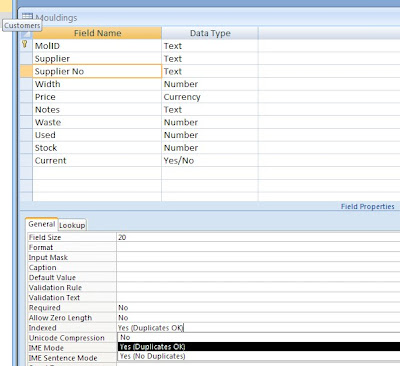
In the top left just above the table list is "Views", click this and select "Design View". The main window will now show a list of the fields in the Mouldings table and their properties. (see below)


Select "Supplier No". Below is a list of the properties for that field.
Select "Indexed" and change "Yes, (No Duplicates)" to "Yes, (Duplicates OK)".
"Save" the changes and you're done, all that remains is to "Import" the modified file back into Wessex Premier.

Points to note -

You should regard this "tweak" as one way only, because, once you have added a record with the same supplier number as another record, Access will not allow you to change back.

You change any of the other properties at your peril!

The above screenshot was from Office 2007, be sure, however, to save the database as an Access 2000/2003 file (ie. a .mdb file not a .mdbx file).

The steps in Office 2003 look different, but are basically the same. (If that's not too double-dutch!)